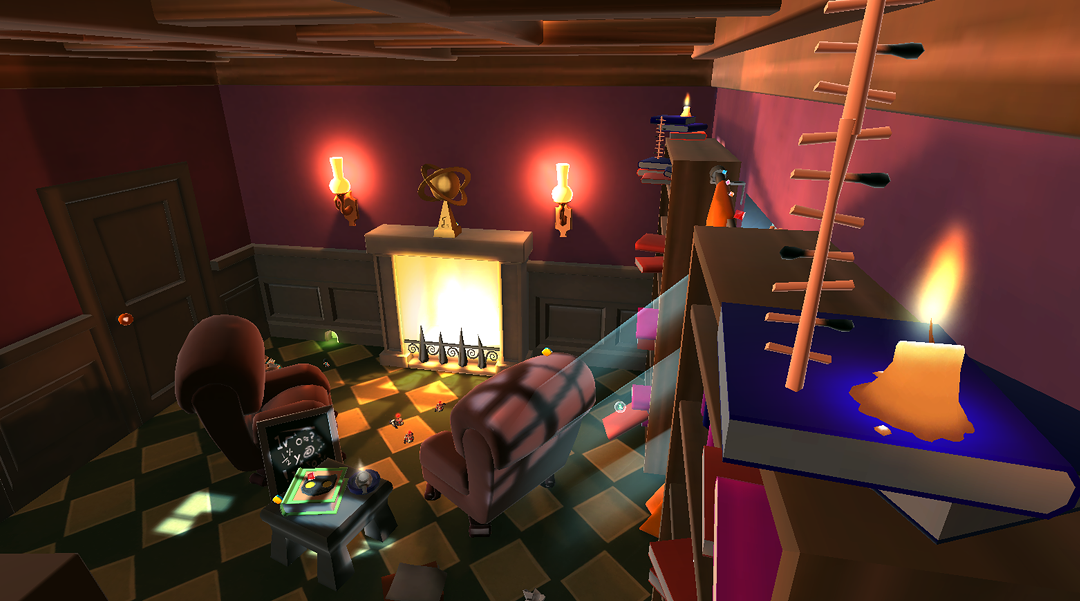
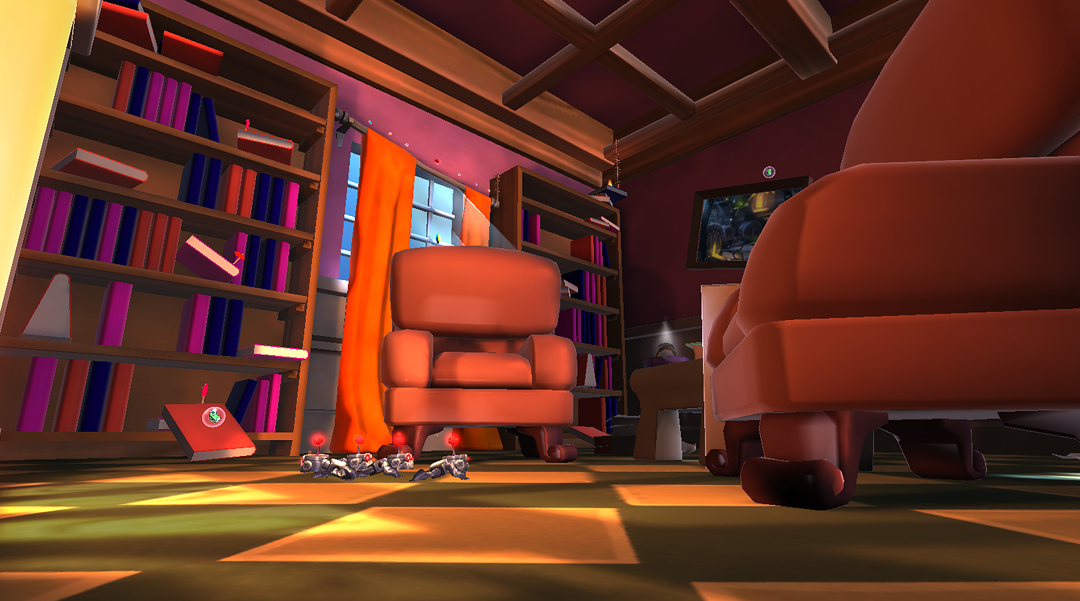
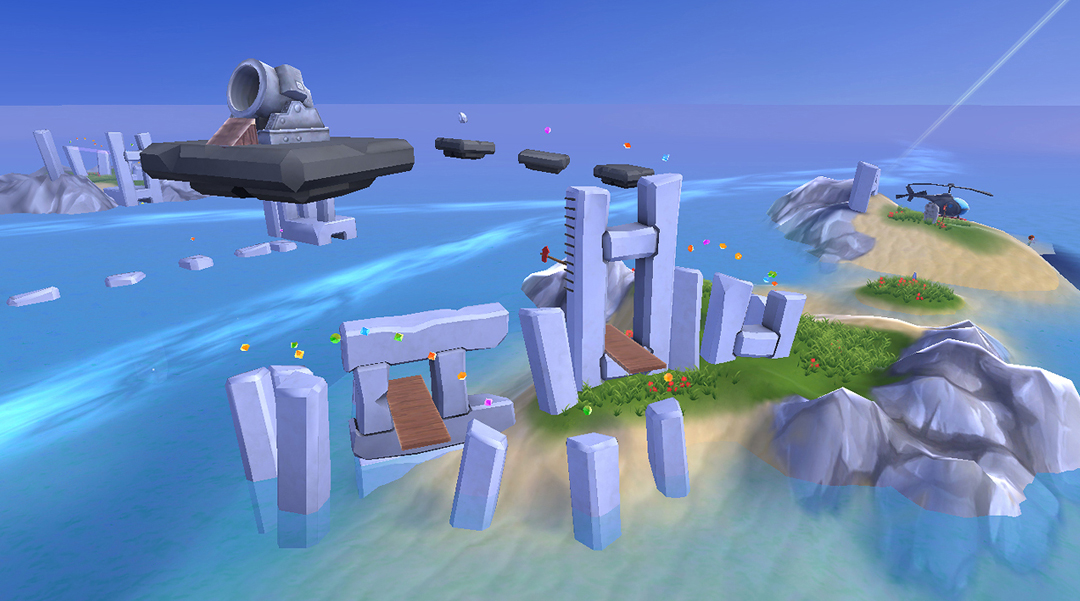
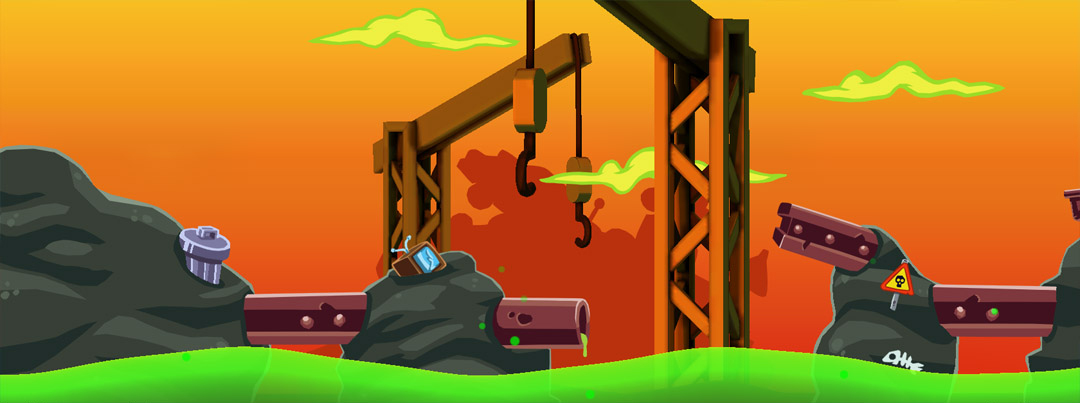
Scene using standard Neutral LUT

Scene using a custom bright and desaturated LUT

Simple layer layout in Photoshop to easily edit and modify your LUT
27 Jun 2010 | no comments »
Here is a quick tutorial on how to create and apply a LUT for your level using the Unreal Development Kit. Read more about Color Grading and Lookup Tables at UDN. You need the Neutral LUT as an uncompressed image file. I have made it available here.
#1 Start of by cleaning your current level from any post-process effects / scene effects. We want a scene only affected by the lighting.
#2 Make sure you have the Neutral LUT applied as a Color Grading Lookup Table in the World Properties.
#3 Take one or more screenshots of your level. Make sure you are in “Game View” mode when you do this. The shortcut for “Game View” is G.
#4 Load the screenshots into a Photoshop document. Get the Neutral LUT above and put it on top of your screenshot layers in Photoshop. You should have something like the image to the left.
#5 You can now start applying different adjustment layers and effects. Place all adjustment layers at the top of your layer structure so they affect both your LUT Layer and your screenshot layers. You now get a pretty accurate representation of how it will look in-game.
#6 Whenever you feel ready copy your LUT Layer. Make sure you don’t lose the adjustment effects. A good way is to select the LUT Layer and press CTRL + Shift + C. This makes a copy of your selection as if it was a flat merged image. Paste this into a new document. It should automatically be sized as a 256×16 if you did the select and copy process correctly. Save this document as an uncompress TGA 32-Bit.
#7 Import it into the UDK and make sure you set the LODGroup to TEXTUREGROUP_ColorLookupTable. Apply your LUT in the World Properties dialog and go into “Game View” mode. You should now be looking at your scene with your LUT applied correctly.

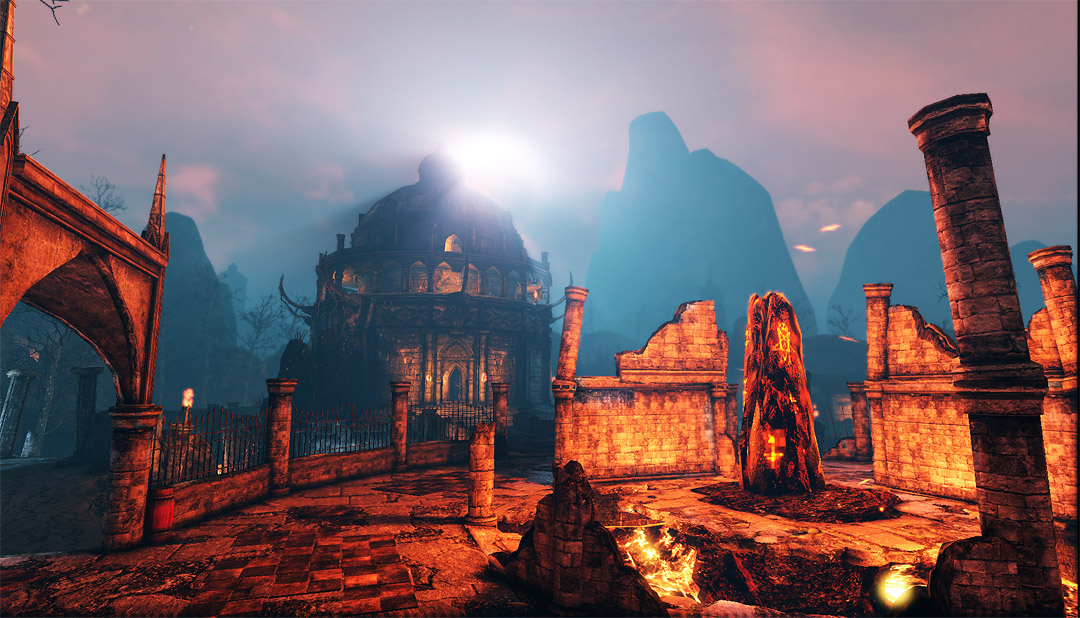
New re-lit “Lost Temple”

New re-lit “Lost Temple”

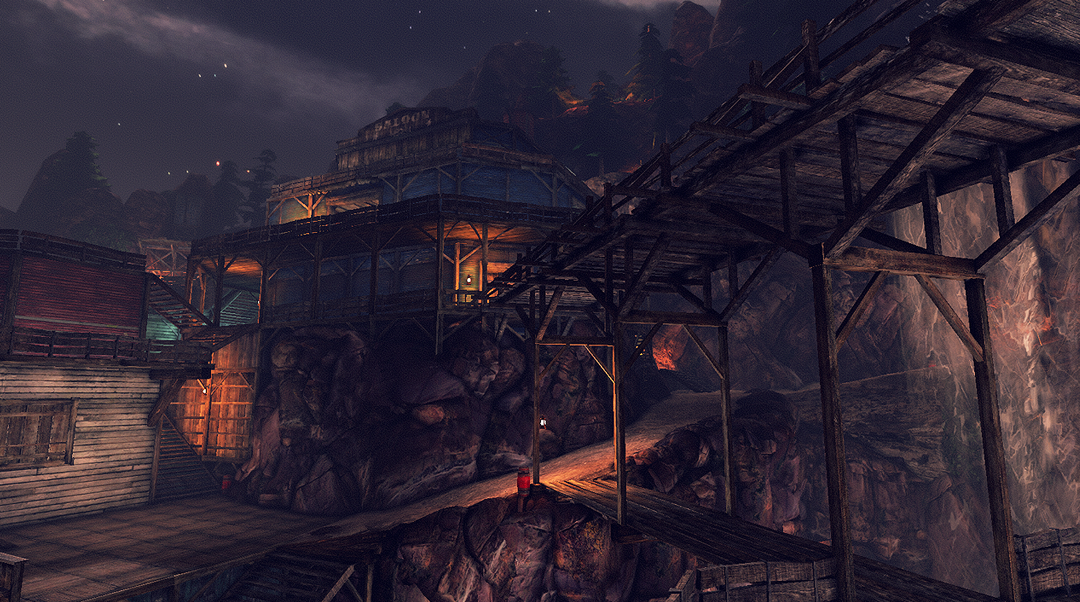
A look at “Abandoned Mine” using a custom LUT
18 Jun 2010 | no comments »
In todays post I want to show some progress on the new version of the award winning level “Lost Temple”. For the retail version of The Haunted we are relighting and updating all current levels. With the Unreal Development Kit Epic has introduced a new lighting solution called Lightmass and we of course want to take advantage of it. For this level there was already pre-existing lighting set-up. However, when turning on Lightmass and the new Color Lookup Table feature everything goes crazy.
I started with removing all pre-existing post-processing effects. The Color Lookup Table, or LUT for short, is a new feature that replaces (or combines with) the old post-process scene effect. It gives you better and more accurate control of your post-processing. After removing the pre-existing settings I went on to delete all old directional and skylight entities to get a fresh start using a new dominant directional light. I wanted to use the moon as the directional light source (the moon reflects sunlight in a white/grey maybe even slightly yellow tint even at night). I had to do a lot of experimenting before getting the results I wanted. In the end I used one dominant directional light coupled with an exponential height fog entity to get the effect I wanted. The moon was moved from a full 3D mesh to a single plane using a new material with an halo to get it to blend better with the skymap and lightshaft effect.
I used mostly cold colors outside highlighting portals and passageways with warmer torches. Interior of the level are warmer lit by living flames. All levels in The Haunted has its own unique type of environment danger. Temple is no exception and during play you might experience the sky going from cold blue to hot red with trees burning and fire stones raining from the sky. Click an image to see a comparison between the normal and danger state of the level.
colleague
23 May 2010 | no comments »
So now that we have our basic cave it is time to break it up a bit and create some variety. Take some time and think about what kind of assets could benefit your theme. This is still a basic pass of the level so try to think simple. I built one wooden beam module that I could break up the rock formations with. I also created rail track modules which can be placed and connected into whole rail track systems.
For the lighting I started out with identifying the possible light sources for my level. The lava, the holes in the cave formations, electric lighting, torches and lamps. I copied part of my level into a new map to test and experiment with the lighting for quicker light builds.
When lighting your level think about the contrast between colors as well as brightness. I want the level to be dark and moody and I try to keep the contrast between light and dark clear. It also benefits the player if you try to incorporate gameplay into your lighting. Try to use the lights to guide the player through the level.
Try to active dead space with either light or using art assets. With dead space I mean parts of your level that is uninteresting to the eye, like a long length of rock, or parts that look very much alike. Try to separate these areas and make them unique.

Scene without the modular pieces

Scene with modular pieces placed, scaled and rotated

Example of modular pieces fitted together randomly
04 May 2010 | no comments »
Here is a sneak peak behind the scenes on The Haunted. At the moment I’m working on placing rock assets on a new level. For this level I started with creating assets that are scale and rotate friendly. I want to do this because the level consists of a majority of rock walls and formations. This way I can easily create interesting cave formations in no time.
I used a sculpt tool to get the right shape and feel of the meshes and then built low poly versions and baked normal maps. Try to keep the modules clean and optimized: in my case I will be using them a lot so I want them to be as cheap as possible. I use one material with 3 1024×1024 texture maps.
Make sure that the base modules are well made. Try to make each side interesting and unique. When they are – it is very easy to create cave system out of very few modules. In this particular case I used two unique rock modules to create the scene. Don’t be afraid to scale, stretch, squeeze and rotate your modules to make your formations more interesting.
The video shows you how I easily build a unique wall quickly using just two modular rock pieces. The light consists of two basic point lights: one blue and one orange. Nothing special at all.
Once the base walls are in place the next step is to explore how to break up and create more diversity in the formations using additional modular pieces and lighting. I will get into that more in part 2.
04 May 2010 | 1 comment »
The Haunted won the grand prize in Epics Make Something Unreal Competition 2010! I’m very happy to be part of the team behind this game and to have won one, if not the, biggest game development competition. The Haunted is currently on the way to become a full download title. Check back later for more news and exclusive sneak peaks.